,
, 
There is a particular kind of excitement that comes with unboxing a new phone. The screen is spotless, the battery lasts forever, and everything feels fast. Then the setup screens begin, and most of us tap "Agree" and "Allow" a dozen times just to get to the home screen. That five minute stretch of impatience is where most privacy problems begin, because the defaults you accept on day one tend to stay in place for the life of the device.
The good news is that you do not need to become a security expert or spend a whole weekend buried in menus. A handful of settings do most of the heavy lifting, and the rest is noise. This guide walks through the ones that genuinely matter, why they matter, and how to set them up in a few minutes on either Android or iPhone. Fix these early and you can mostly forget about them.
Start With App Permissions, Not the Apps Themselves
Permissions are the foundation of smartphone privacy. Every app you install will ask for access to something, whether that is your camera, contacts, microphone, or photo library. The mistake most people make is treating these requests as a formality. A flashlight app has no business reading your contact list, and a simple game does not need your precise location.
Both Android and iOS now let you grant permissions on a limited basis instead of all or nothing. You can allow access only while an app is in use, approve it just once, or share an approximate location instead of an exact one. Use these options aggressively. When in doubt, deny the request. If the app genuinely needs the permission, it will ask again at the moment it matters, and you can decide with proper context.
It is also worth doing a quick audit on a phone you have owned for a while, since permissions pile up over months of casual tapping. On Android, open Settings, then Security and Privacy, then Permission Manager. On an iPhone, go to Settings, then Privacy and Security. Both systems show you exactly which apps can reach which parts of your device, and both include a dashboard or report that reveals how often each app actually used that access. Seeing that a shopping app checked your location forty times yesterday tends to clarify your decisions quickly.
Get Serious About Location Tracking
Location data deserves its own section because it is the most revealing thing your phone collects. A log of where you go is effectively a diary of your life: where you sleep, where you work, which doctor you visit, and who you spend time with. Advertisers, data brokers, and occasionally bad actors value this information for exactly that reason.
Three settings make the biggest difference here:
- Switch most apps to approximate location. Weather and news apps work perfectly well knowing your city rather than your street address. Reserve precise location for navigation and ride hailing apps that truly need it.
- Set location access to "While Using" instead of "Always." Very few apps have a legitimate reason to track you in the background, and this single change cuts off the majority of silent location collection.
- Review your location history. Google's Timeline and Apple's Significant Locations both keep records of places you visit. You can view, limit, or delete these in your account settings, and turning them off costs you almost nothing in daily convenience.
One more detail people often miss: photos carry location data embedded in the file. Both platforms let you strip this information when sharing an image, so a public post does not quietly reveal your home address.
Reset and Limit Your Advertising ID
Every smartphone ships with an advertising identifier, a unique string that lets ad networks recognize your device across different apps and build a profile of your habits. You never see it, but it follows you everywhere.
On an iPhone, the relevant control is App Tracking Transparency. When an app asks for permission to track you, choose "Ask App Not to Track." You can also flip the master switch under Settings, Privacy and Security, Tracking, which stops apps from even asking. On Android, go to Settings, then Security and Privacy, then Ads, where you can delete your advertising ID entirely. Once deleted, apps that request it receive a string of zeros instead of a usable identifier.
Will you still see ads? Yes. Ads themselves are not the problem. The problem is the detailed behavioral profile built behind them, and these settings shrink that profile dramatically. While you are in this part of the menu, also look for options labeled "personalized ads" or "ad topics" in your Google or Apple account and switch off what you can.
Check What Your Lock Screen Gives Away
A locked phone is not as private as it looks. By default, most phones display full message previews, email subject lines, and calendar reminders on the lock screen. Anyone who picks up your device, or simply glances at it on a table, can read two factor authentication codes, private conversations, and appointment details without ever entering your passcode.
Head to your notification settings and choose to hide sensitive content when the phone is locked. You will still see that a message arrived, just not what it says. While you are there, strengthen the lock itself. A six digit PIN or an alphanumeric passcode beats a four digit code or a swipe pattern, and biometric unlock makes the stronger code painless in daily use. Set the auto lock timer to one minute or less.
Finally, disable access to Siri, Google Assistant, and control panels from the lock screen if you do not use them there. Voice assistants on a locked phone have been used to send messages and reveal contact details without the owner's involvement.
Protect Your Connection, Not Just Your Device
Privacy does not stop at the edge of your phone. The networks you connect to can see and sometimes record your activity, which matters most on public Wi-Fi in airports, hotels, and coffee shops. Anyone running or monitoring that network can observe which sites and services your phone contacts, even when the content itself is encrypted.
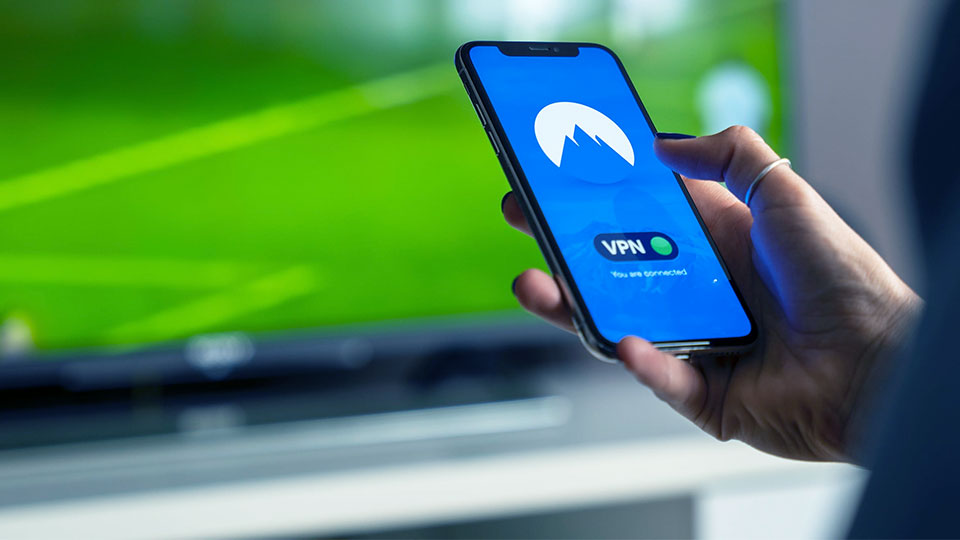
This is where a VPN earns its place in your setup. If you have ever wondered what's a VPN in practical terms, it is a service that wraps your internet traffic in an encrypted tunnel and routes it through a server elsewhere, so the local network only sees scrambled data heading to one destination.
For a phone that constantly hops between home Wi-Fi, mobile data, and whatever open network is nearby, that consistency is the real benefit. You do not need to run it every second of the day, but having a reputable VPN app installed and switching it on whenever you join a network you do not control is one of the simplest habits you can build. Choose a provider with a clear no logging policy, since routing your traffic through a service that records it would defeat the purpose.
Two smaller connection settings are worth a moment too. Turn on private or randomized Wi-Fi address in your network settings, which stops stores and venues from recognizing your device by its hardware identifier. And tell your phone to forget public networks after you use them, so it does not automatically reconnect, or be tricked into connecting to an imposter network with the same name, the next time you walk past.
Review Backups, Sync, and What Leaves Your Phone
The last area people overlook is everything that quietly flows off the device. Cloud backups are genuinely valuable, and you should keep them on, but it pays to know what is included. Check whether your messages are backed up with end to end encryption. Apple offers Advanced Data Protection, which extends end to end encryption to almost everything in iCloud, and Google encrypts Android backups with your device passcode. Both are worth enabling or verifying.
The same logic applies to apps. Messaging apps may upload your contact list, keyboard apps may transmit typing data, and photo apps may sync your entire library by default. Skim the privacy section of each major app you install and turn off sharing that serves the company more than it serves you. Diagnostic data and usage analytics, found in your phone's main privacy menu, can also be switched off with no effect on how the phone works.
Make It a Fifteen Minute Habit
None of this requires technical skill, just fifteen minutes and a little intent. Tighten app permissions, rein in location access, reset your advertising ID, hide lock screen previews, protect your connection on unfamiliar networks, and confirm your backups are encrypted. Those six moves close the gaps that matter most, and everything else is fine tuning.
So here is the call to action: pick up your phone right now, open the privacy section of your settings, and work through one section of this guide today. Then do another tomorrow. By the end of the week your new phone will be set up the way it should have shipped, and your data will finally be working for you instead of everyone else.
 Realme 8i
  Xiaomi Redmi Note 4
  Google Pixel 8
  Tecno Pova 3
  Apple iPhone 16 Pro
  Motorola Moto E