,
, 
Introduction
Shopping for a new phone typically begins with comparison.
Which phone's design do you like best? Which phone has an awesome camera? Do you really need this new model?
Yet, there's a hitch.
The photos you're using in those comparisons are rarely as clean as they appear. From carrier ads to store logos to watermarks, stray elements are often hidden in product pictures… ruining the attention of users.
A cleaner picture helps you make a more accurate comparison. To see how, let's dive into removing those elements and making product photos that do your phone justice.
A clearer image makes for a more effective side-by-side comparison. With this in mind, let's take a look at how to eliminate these visual distractions.
The Sale Banner You Didn't Put There Is Already in Your Review Photo
Ever downloaded a phone image for a comparison and found a random "Limited Time Offer" banner sitting on top?
You wanted the phone, not the sale pitch.
Well, this happens constantly on images sourced from carrier sites, such as Verizon, AT&T, or T-Mobile, and retailers such as Best Buy, Samsung, or Amazon. Most official product shots have embedded promos, logos or watermarks - from trade-in discounts to store logos or sales banners.
The result? Your clean phone comparison suddenly looks like an advertisement.
Why Carrier and Retailer Images Come Pre-Loaded with Their Own Ads
The reason is simple: these images were made for selling phones first.
Sure, these are marketing photos. The intention is to sell phones, not compare them or provide unbiased reviews.
That discount banner or store logo is exactly what will help sell phones for carriers and retailers, but by using it in your review or article, you're importing the same messaging for their sales efforts as well.
For instance, a "Save $200" overlay is eye-catching on a storefront, but does it really belong in the middle of your smartphone comparison article? Definitely not!
The Second, Quieter Problem: What This Does to Your Shopping Feed
Things are getting complex: the issue goes beyond making your article look messy now!
Google Merchant Center and other shopping platforms aren't huge fans of product photos showing text overlays, brand logos, or watermarks that mask the product.
If you have images that include such graphics, you could even see your images get disapproved until they're corrected.
Now, it should go without saying… but that's incredibly important if you utilize shopping comparison feeds, product comparison tools, or affiliate links within your blog.
A messy promo image may not just annoy readers — it could also affect how your products appear in shopping results.
A simple image cleanup can make a big difference. Instead of asking, "Can I use this image?" ask:
"Does this image work for my readers and my shopping feed, or is that little banner causing problems behind the scenes?"
Four Ways Reviewers Deal With It (And Why None of Them Actually Solve Both Problems)
There are a few common fixes — but each one has its own headache.
Publish It As-Is and Hope Nobody Notices
You can just use the image and leave it there. Sounds simple?
That's where the problem lies. Suddenly your review turns into an advertisement. And if the image is displayed in a Shopping Feed you might be experiencing problems that aren't even on your radar yet.
Crop Around the Banner — Until It Cuts into the Phone Itself
Cropping might sound easy enough, right? Sure, cropping is easy when the ad image isn't in the corner of the screen!
Though of course, the images of the carrier are filled with the branding which occupies the entire width of the bottom or are even overlaid with phones.
There's only so much you can crop before your product information is masked.
Go Find a Cleaner Image (When One Even Exists)
There's only one solution: try to find another image.
What happens when you do have no other picture, you're stuck with the only official photo - usually from a vendor that has limited colors or special versions that you're stuck with:
Wait on a Press Team That Won't Reply Before Launch Day
The right way to handle this is by simply asking the source for the clean file… but this doesn't work in certain situations.
When a phone launch is happening, waiting days for a reply isn't exactly helpful.
You see how things go: solve one issue and it will cause another.
Whether you cut corners, take longer to maintain image quality, or get stuck with promotional debris, there seems to be no single approach where you can benefit from everything.
Getting the Ad Out Without Losing the Shot
It's tough. You have two challenges: the text you need to get rid of, but then the actual phone you want left in the shot.
Any editing tool should understand you're not just after removal…you want a clean product. This means the texture, colors, details, and form of the phone all need to be preserved.
You know what's worse and even harder?
When overlays run into shiny areas like screens or cameras or along metal and other high-contrast edges.
Without any precise edit, one can find some hazy spots, a messy texture, or the trace… showing clearly that was banners there!
What "Clean" Actually Requires — Especially Near Screens and Metal Edges
A clean removal requires the unwanted promo to disappear while maintaining the visual structure of your original image.
AI cleanup is crucial here. Instead of trying to erase the unwanted element, the cleanup needs to somehow infer the textures, patterns and light conditions of surrounding areas so it can recreate the lost area as realistically as possible.

Wink Fix: Auto-Detect for the Easy Cases, Manual Selection for the Hard Ones
This is where Wink's AI image watermark remover comes in.
Wink remove watermarks from photos more conveniently, offering both automatic removal and fine-tuned selection of affected zones.
For a minor logo or some promotional sticker, AI can help detect and remove a part automatically; you can just get rid of it, with only a single tap.
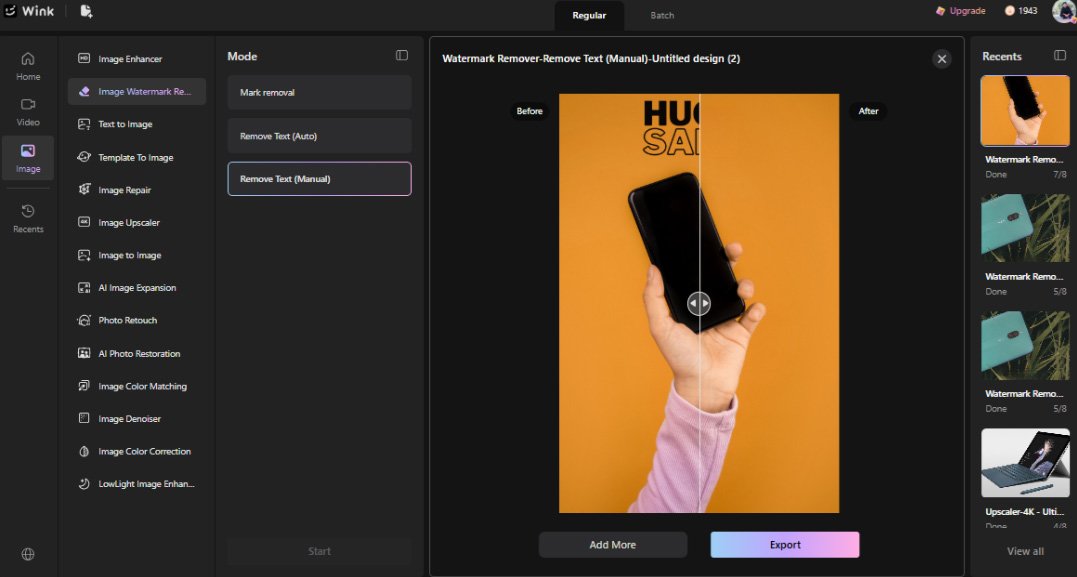
However, for such an annoying banner that spans the entire width of the screen? Nothing much to worry about; you can manually trace out and select the section you prefer cleaning.
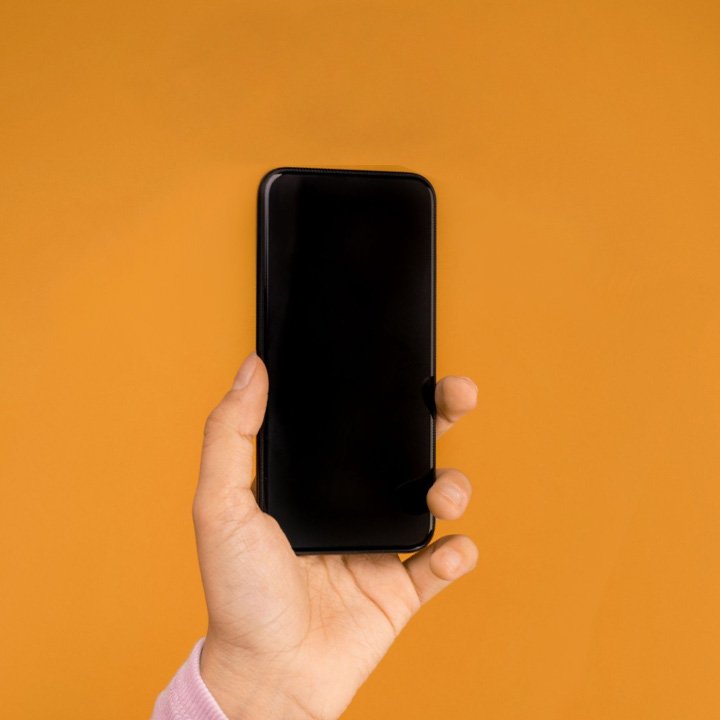
Batch-Cleaning a Whole Launch-Day Roundup at Once
Reviewing one phone?
No problem.
Reviewing six phones releasing on the exact same day?
Yes, it's not really the same.
Save your time and your finger-tapping by using our batch and folder uploads to process them all at once in one sitting and get right back to the review.
A 30-Second Check Before Any Carrier or Retail Image Goes Live
Do you catch your promo banner? Or is your store logo or even a watermark peaking from behind?
Do check before publishing.
As always, if you have the time, consider requesting a clean press release image of the phone instead of working with an advertisement underneath… and if that doesn't, crop.
There is much more harm in chopping the side of a handset than spending a few seconds getting an ad removed.
Conclusion
A great phone comparison should help people focus on the device—not a giant "Limited Time Offer" sticker covering half the screen.
For retailers or images sourced directly from a carrier, it's worth spending a few minutes to remove unnecessary banners and watermarks. This will make your comparisons look so much more professional. And, of course, you don't have time to carefully edit every picture – Wink's AI Image Watermark Remover does so effortlessly.
Ultimately, clean images mean clean comparisons. That's what the people came for.
 Realme X2 Pro
  HMD Fusion
  HTC One X
  Microsoft Lumia 640 XL
  Samsung Galaxy Note 7
  BlackBerry 8830